|
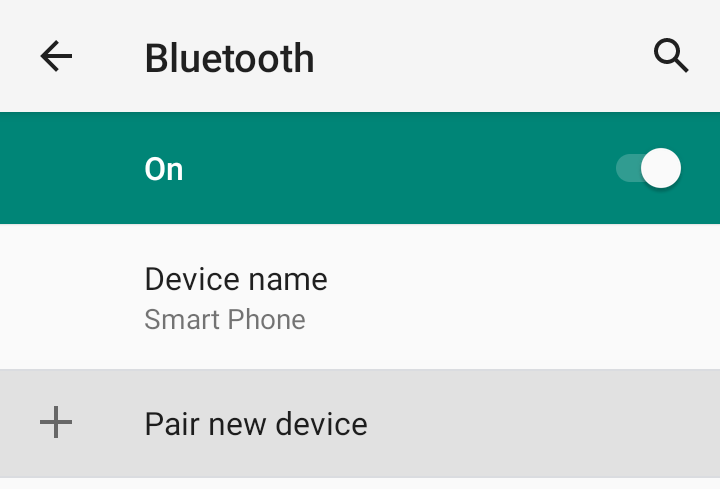
 Go to "Settings"
- "Bluetooth," then click "Pair new device." Go to "Settings"
- "Bluetooth," then click "Pair new device." |
 |
|
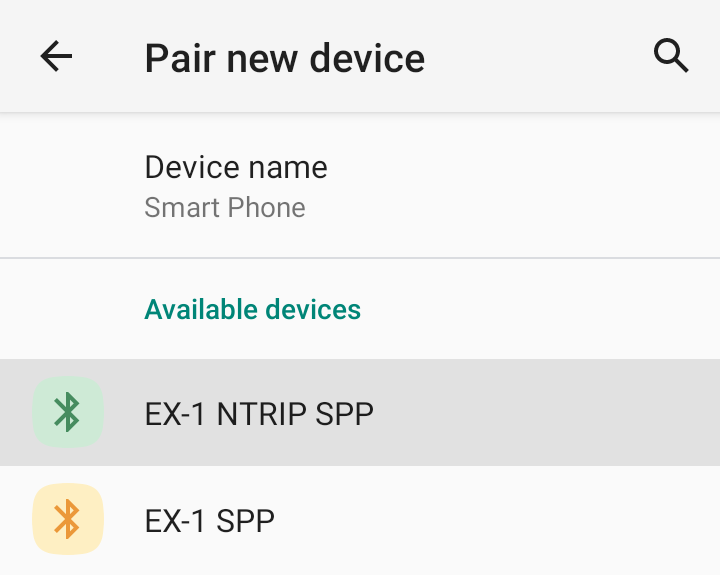
 Select "EX-1
NTRIP SPP." Select "EX-1
NTRIP SPP." |
 |
|
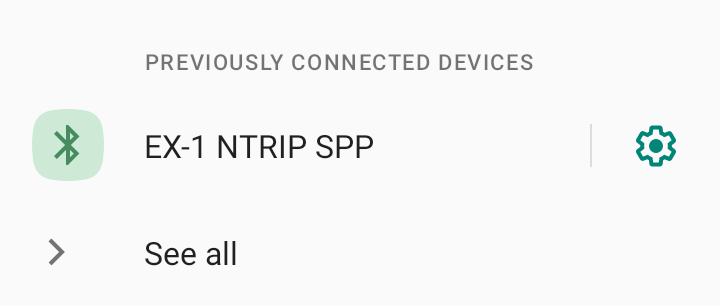
 Pairing
successful. Pairing
successful. |
 |
|
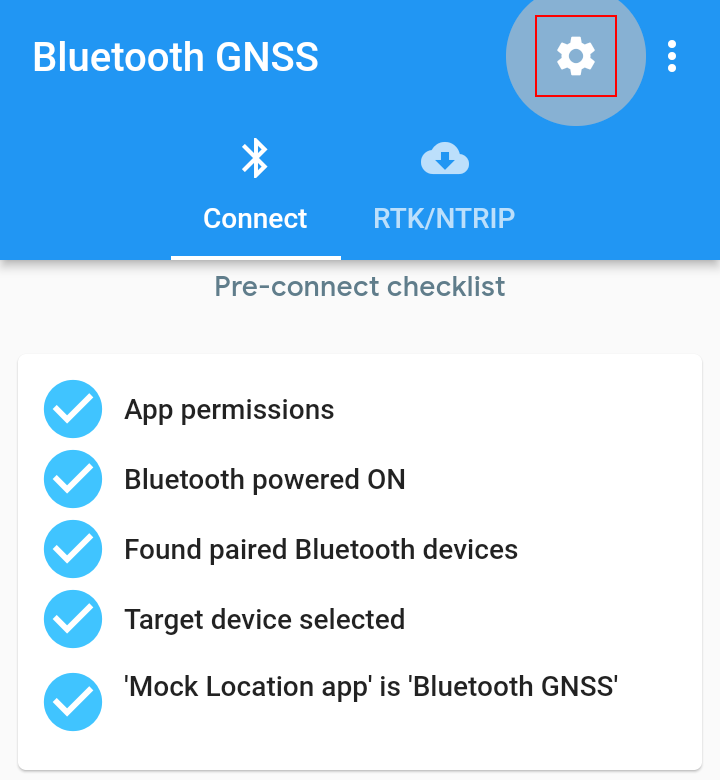
 Click the "gear"
icon in the top right corner. Click the "gear"
icon in the top right corner. |
 |
|
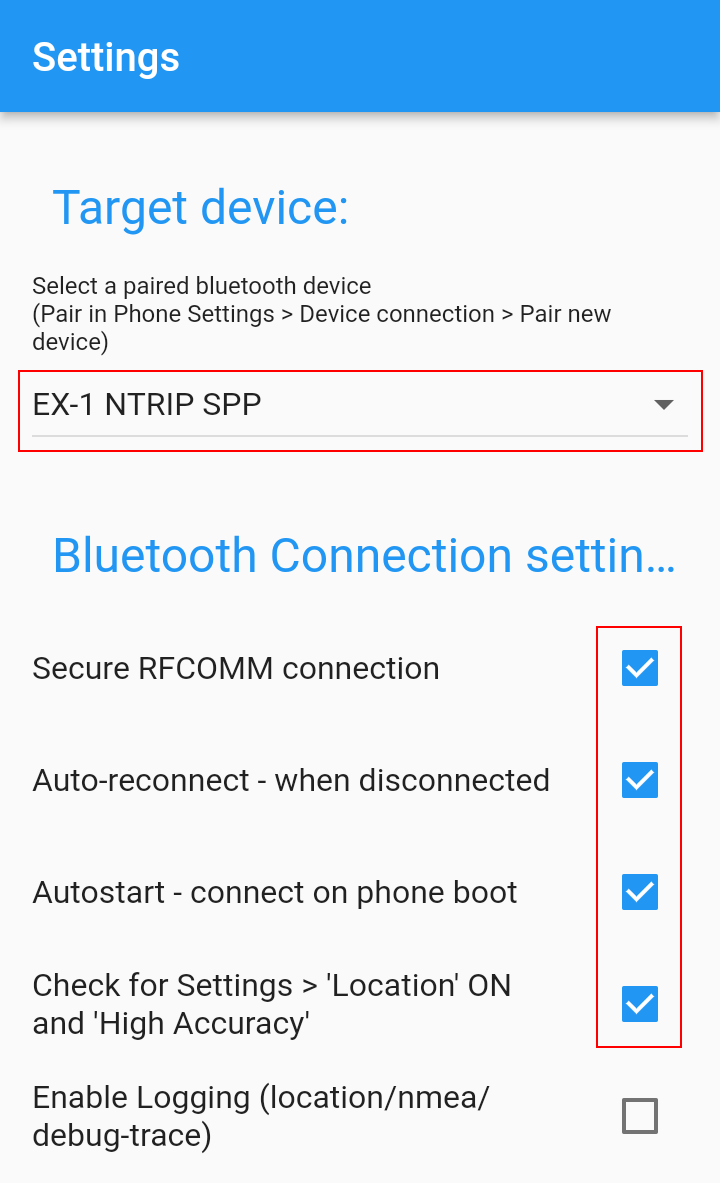
 Under "Target
device," select the previously paired "EX-1 NTRIP SPP" and
check the following options as needed. Under "Target
device," select the previously paired "EX-1 NTRIP SPP" and
check the following options as needed. |
 |
|
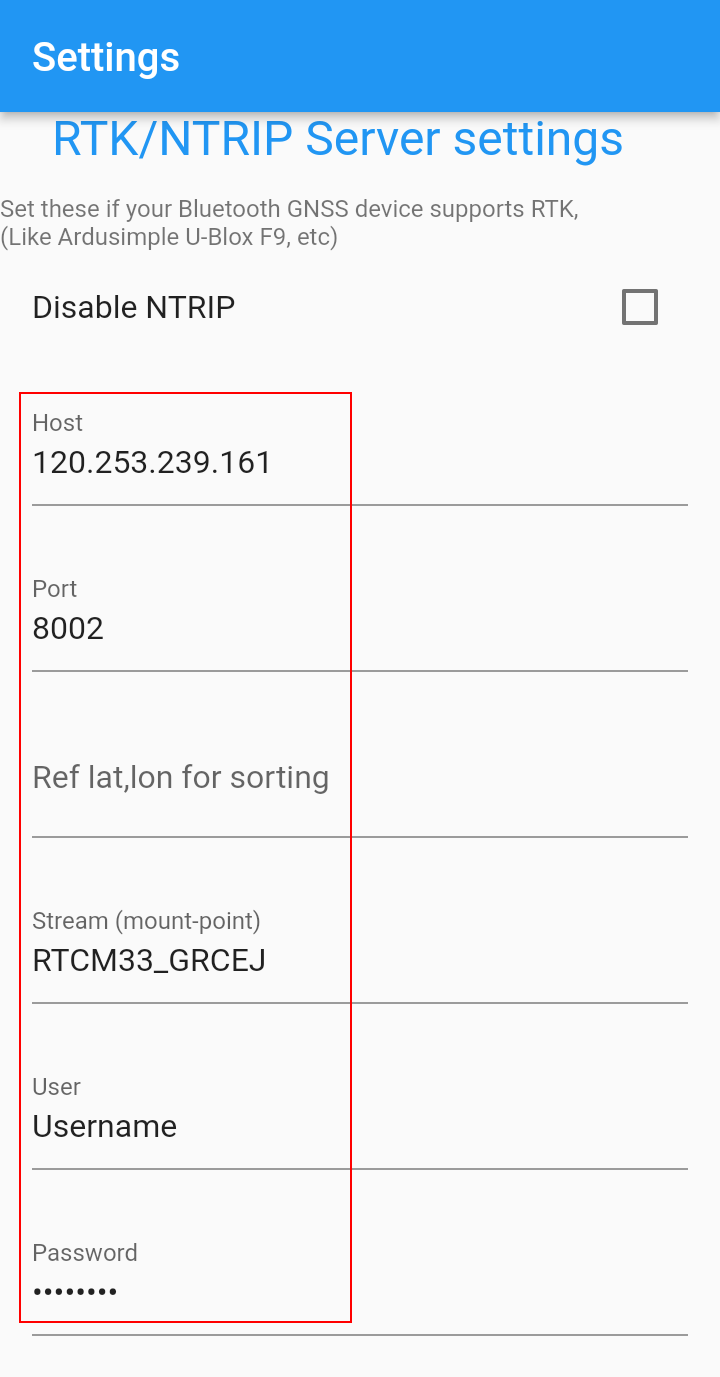
 In the "RTK/NTRIP
Server settings," enter the relevant NTRIP service
information. In the "RTK/NTRIP
Server settings," enter the relevant NTRIP service
information.
* NTRIP service must be applied for in advance, and you will
receive a username, password, and other information from the
service provider. You can also set up your own NTRIP server
using "GeoAstra"
.
Refer to
"How to Set Up a Base Station" for more details”>
|
 |
|
|
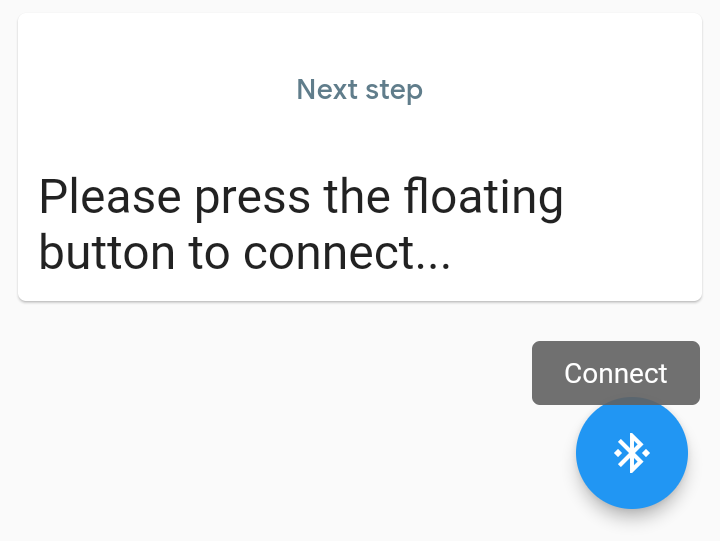
 Click the
"Connect" button in the bottom right corner. Click the
"Connect" button in the bottom right corner. |
 |
|
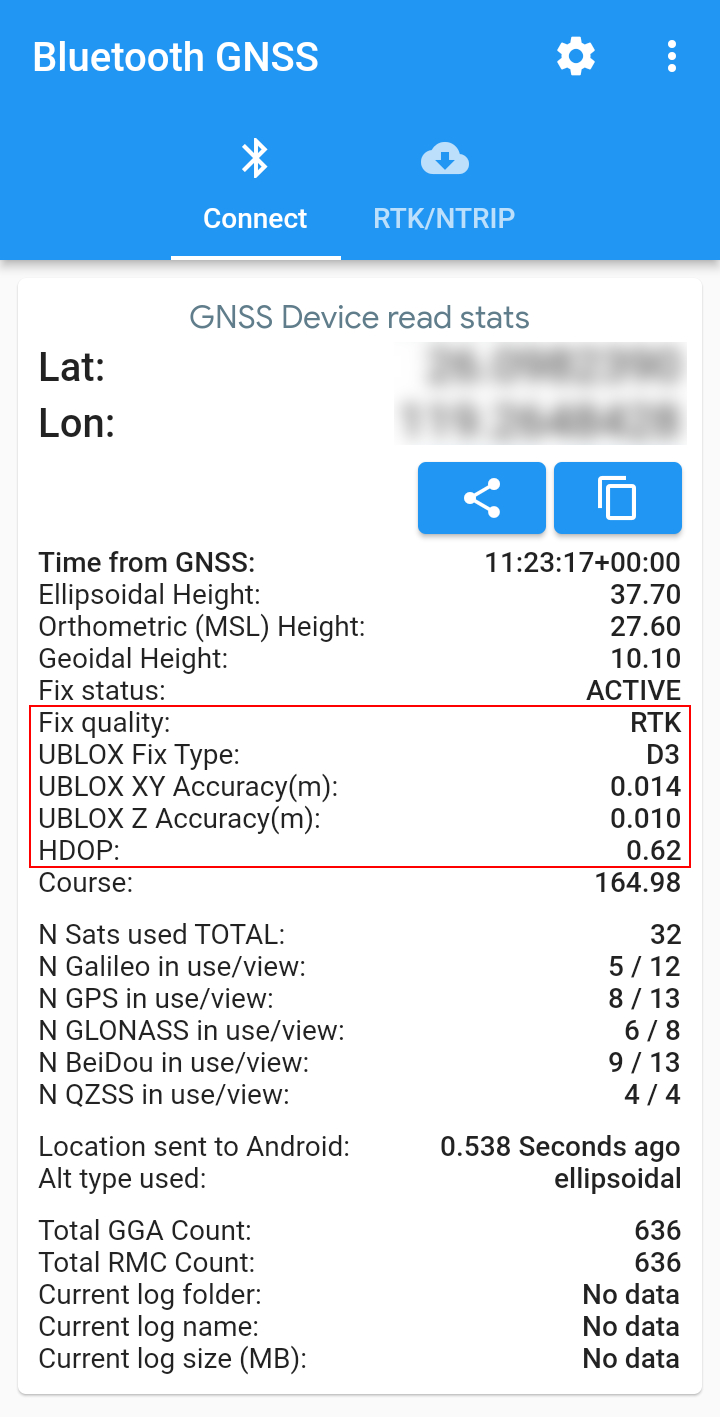
 When "Fix
quality" shows RTK, RTK positioning has been achieved. At
this point, the "GNSS lamp" will turn solid blue. When "Fix
quality" shows RTK, RTK positioning has been achieved. At
this point, the "GNSS lamp" will turn solid blue.

*
UBLOX XY Accuracy represents horizontal accuracy, and UBLOX
Z Accuracy represents vertical accuracy. |
 |
|
 At this
point, the EX-1 has been set as the location provider for
your Android device. Tap to launch your GIS mapping
software, and it will directly use the positioning data from
the EX-1. At this
point, the EX-1 has been set as the location provider for
your Android device. Tap to launch your GIS mapping
software, and it will directly use the positioning data from
the EX-1.
|
|
|
|
|
|
|
|
 Install the
"Bluetooth GNSS" app. Set this "Bluetooth GNSS" as the "Mock
Location App",
Install the
"Bluetooth GNSS" app. Set this "Bluetooth GNSS" as the "Mock
Location App",