|
>How to Configure the P-70 Ultra< |
|
 Attention! Please do not modify other options in the configuration
interface, as this may cause the device to malfunction.
Attention! Please do not modify other options in the configuration
interface, as this may cause the device to malfunction. |
|
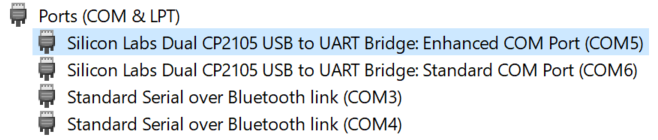
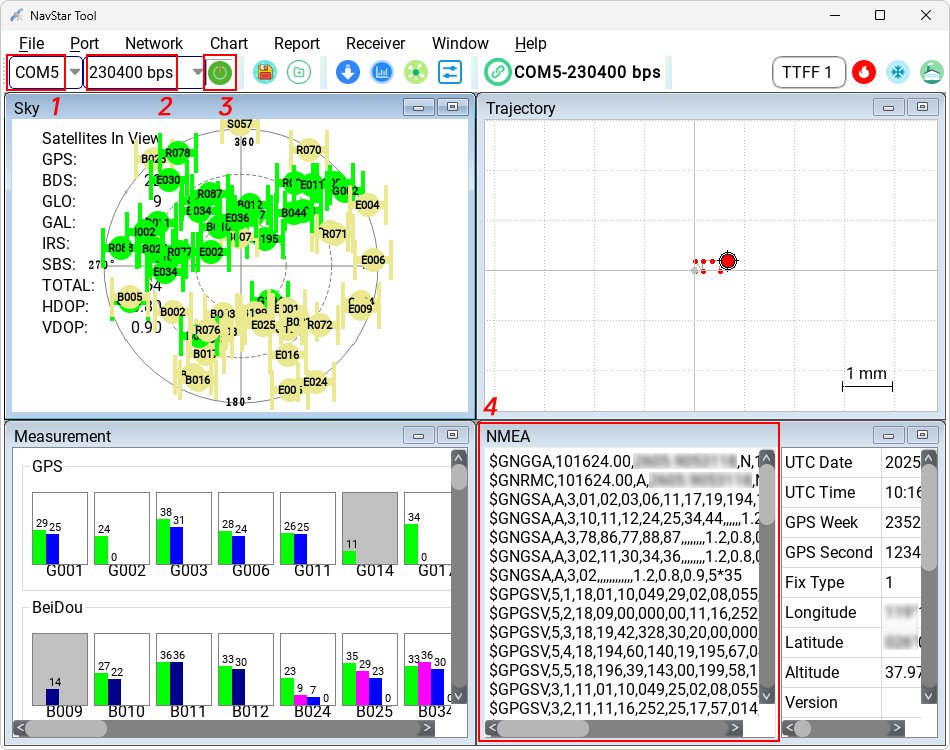
 Select the port corresponding to "Enhanced
COM Port", set the baud rate to "230400 bps",
and click the "Switch" icon. If data starts scrolling in the "NMEA" window, the
connection is successful. Select the port corresponding to "Enhanced
COM Port", set the baud rate to "230400 bps",
and click the "Switch" icon. If data starts scrolling in the "NMEA" window, the
connection is successful. |
|
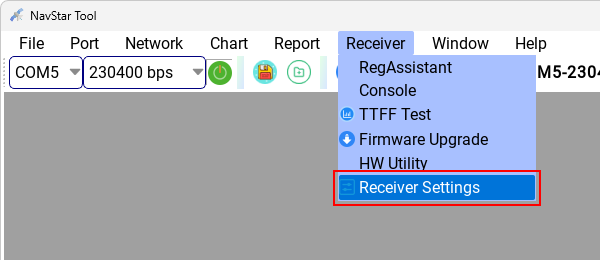
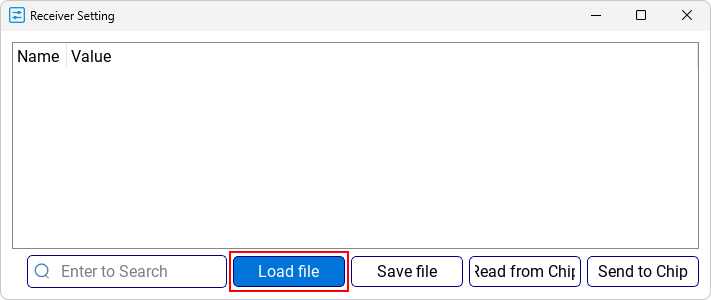
 Click "Receiver" -
"Receiver Settings". Click "Receiver" -
"Receiver Settings". |
|
Click "Load file". |
|
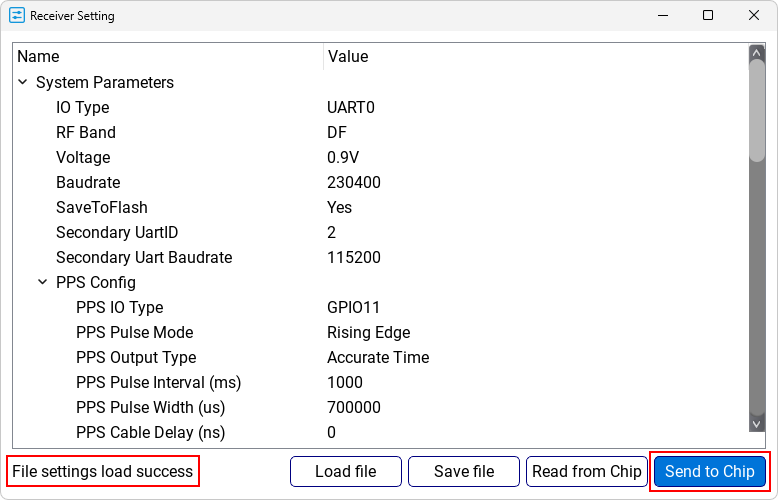
When "File settings
load success" appears in the bottom left corner, click "Send to Chip" to save
the configuration. |
|
 |
|
Configuration Files
Right-click on the icon and select "Save link as". |
|
 |
Rover Mode (1Hz)
The factory default configuration of the P-70 Ultra,
optimized for applications requiring high-precision
positioning.
|
|
 |
Base Station Mode (1Hz)
Configures the P-70 Ultra as an RTK base station, providing RTK
correction data to P-70 Ultra receivers operating in Rover Mode. |
|
 |
Rover Mode (5Hz)
A moderate update rate suitable for medium-speed applications such
as passenger vehicles, e-bikes, golf carts, and robotic lawn mowers. |
|
 |
Rover Mode (10Hz)
A higher update rate designed for high-speed applications such as
race cars, motorcycles, and powerboats. |
|
 |
Rover Mode (20Hz)
The highest update rate supported in RTK Rover Mode, suitable for
high-dynamic applications such as UAVs and other rapidly maneuvering
vehicles.
Note:
This mode generates a significantly larger amount of data. |
|
For more personalized mode customization, feel free to contact us at: service@cbgps.com |
|
|
 Download and run "